




In the strong believe that every person has the right to live with dignity, equality, comfort and independence, ericroth.org strives to ensure and has invested a significant amount of resources to provide its website easier to use and more accessible for people with disabilities.
As of April 2026, this site scores an accessibility rate of 100% for both desktop and mobile devices for the frontpage, as measured by Google PageSpeed powered by Lighthouse. See the results here: Happy Coding!
Find everything you wanted to know about digital accessibility & equality on the Web Accessibility Initiative and hopefully some useful insights below. As a bonus specifically for The Elderly, you may also want to check out the Ultimate Safety Guide For Seniors
Keyboard Usage
Shortcuts
Accessibility shortcuts help you control your PC or Mac with a keyboard or assistive device. Hit the button below for a list of keyboard shortcuts for assistive technologies.
Zoom
To make text bigger or smaller, press two keys at the same time: ctrl and +/- keys respectively in Windows, Linux, and Chrome – OR – ⌘ and +/- keys respectively in Mac OS. → You may also place two fingers on the touchpad and Pinch In / Stretch Out – OR – apply Ctrl+Scroll with mouse wheel.
Caret Browsing
You can highlight and copy text from browser pages using several ways besides using your mouse or trackpad. If your PC has a touchscreen, you could use your fingers.
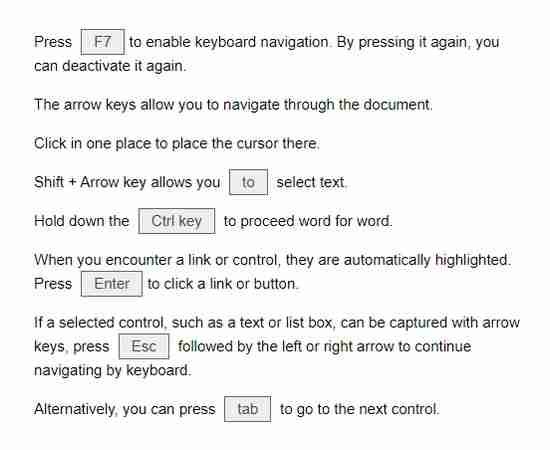
For computers without a touchscreen, you could use Caret Browsing (also known as Caret Navigation) which is a feature that lets you explore webpages using only the navigation keys on your keyboard. This type of navigation is commonly used in word processors and text editors.
With Caret Browsing, you can also select a huge chunk of texts on webpages more accurately than using your computer’s mouse or trackpad. The caret is the name of the vertical “|” text cursor.
In Chrome, Firefox and Edge, you can enable Caret Browsing through a hotkey. Hit (fn+) F7 and click Yes to turn on Caret Browsing. Do the same to disable the feature. Some popular browsers like Safari and Opera don’t support Caret Navigation but surprisingly, IE does (as of 2022).
Internet Browser
Context Menu
A context menu is a menu in a graphical user interface that appears upon user interaction, such as a right-click mouse operation. How to right-click? A context menu offers a limited set of choices that are available in the current state or context of the operating system or application to which the menu belongs. In current internet browsers, there are some helpful choices in regards of accessibility already built-in.

Immersivity
→ Chrome
Chrome supports screen readers and magnifiers and offers people with low vision full-page zoom, high-contrast color and extensions that can help users with special needs. These Tools convert text to speech, enhance colors, enlarge text and other parts of pages.
→ Firefox
Firefox includes many Accessibility Features to make the browser and web content accessible to all users, including those who have low vision, no vision, or limited ability to use a keyboard or mouse. There’s more: Access Firefox website contains many useful links.
→ Edge
The Immersive Reader simplifies a web page layout, removes clutter and lets you customize your reading experience. It is designed to meet the needs of readers with dyslexia and dysgraphia or anyone who wants to make reading on their device easier → Press F9
→ Safari
Built‑in features that work the way you do. Make them yours and make something wonderful with these Cognitive Features. However you prefer to learn, get more out of your features. Learn tips, tricks, and how-tos for cognitives straight from Apple Support on YouTube
Personalisation
Translate

Google’s free online language translation service quickly translates web pages to other languages. Use the Website Translator to convert THIS web site (page by page) into your choice of language.
Or even better yet: Click the Globe Icon at the bottom-right corner to open the language switcher and have it translate site-wide. Google Translate supports 243 languages as of June 2024.

Alternatively, choose your browser and you will be taken to its respective translator user guide or extensions collection. You may also turn to one of the quick guides below.
Quick guides: Edge → Right-click and choose the “Translate To” [Language] option from the menu to get auto translated text using the system language settings. Universal → Translate Docs & Sites
Read Aloud

Read Aloud uses text-to-speech (TTS) technology to convert webpage text to audio. Use the switch in the Footer to toggle between Mute | Unmute.
Alternatively, choose your browser and you will be taken to its respective read aloud (screen reader) user guide or extensions collection. You may also turn to the quick guide below.
Quick guide: Edge → Right-click and choose the “Read Aloud” option from the menu. The computer voice will start reading the text to you and will highlight each word as it’s reading.
Toggle Mode
Switch between dark and light mode: Use the switch in the Footer to toggle between Dark | Light. This setting applies instantly across the entire site for a seamless browsing experience. Your preference is remembered automatically, so the site will open in the mode you last selected.
Virtual Assistants
Voice Access in Windows 11 lets you control your PC and dictate text using voice commands. It works offline with advanced speech recognition for app navigation, web browsing, and email management.
You can also ask Siri to help with some accessibility features. Siri is a virtual assistant that is part of Apple Inc.’s iOS, iPadOS, watchOS, macOS, tvOS, and audioOS operating systems.
AI Chatbots
Copilot is an AI companion by Microsoft that helps with brainstorming, answering questions, productivity tasks, and creative content – making life easier and more engaging.
ChatGPT, developed by OpenAI, is an AI chatbot that generates human-like text for tasks like answering questions, writing, brainstorming, and coding – similar to Copilot, helping users boost productivity and creativity.
Website Access
Web pages and documents stored on servers are typically accessed via a web browser (also referred to as an internet browser or simply a browser). It’s an application software you have on your computer that, by accessing the World Wide Web or a local website, knows how to read and display web pages to you. The easiest way to access a website is to write the desired address – e.g. ericroth.org – into the address bar located in the browser. Your internet connection then allows you to send and receive respective data on the web. When you type a web address into your browser:
a) The browser goes to the DNS server (→ Domain Name Servers are like an address book for websites) and finds the real address of the server that the website lives on.
b) The browser sends an HTTP request message (→ Hypertext Transfer Protocol is an application protocol that defines a language for clients and servers to speak to each other; HTTPS is HTTP with encryption) to the server, asking it to send a copy of the website to the client. This message and all other data sent between the client and the server is sent across your internet connection using TCP/IP (→ Transmission Control Protocol and Internet Protocol are communication protocols that define how data should travel across the internet).
c) If the server approves the client’s request, it sends a message which means “Of course you can look at that website! Here it is.” and starts sending the website’s files to the browser as a series of small chunks called data packets.
d) The browser assembles the small chunks into a complete web page and displays it to you.
A website is made up of many differet files which come in two main types → Code files: Primarily those as outlined in Happy Coding! and Assets: This is a collective name for all the other stuff that maeks up a website such as images, music, video etc.